
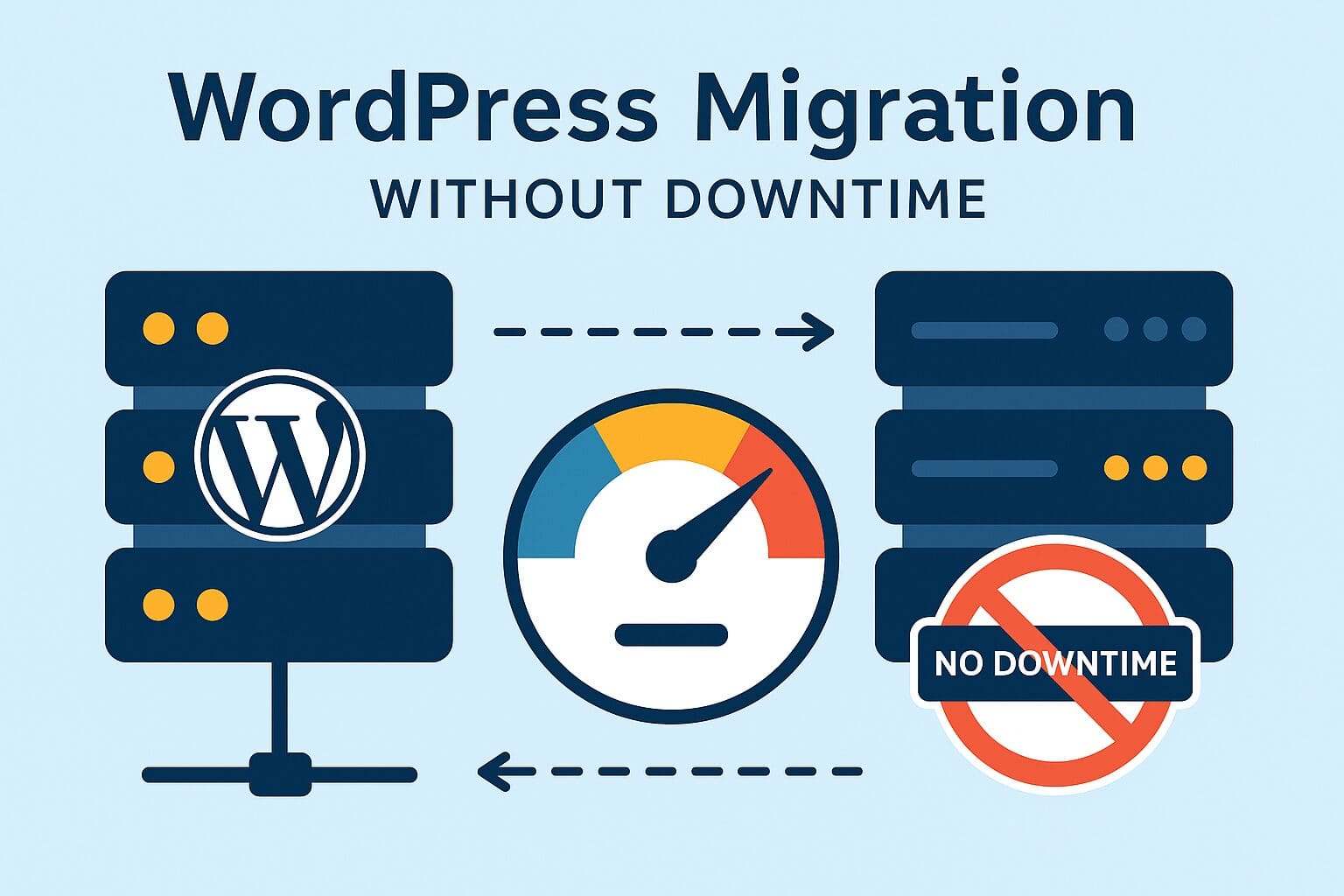
Migrating your WordPress site to a new hosting provider can be risky if not handled properly. Downtime, broken links, or lost data can hurt your SEO, sales, and user trust. In this 2025 step-by-step guide, you'll learn how to safely migrate your WordPress site to a new host without any downtime — whether you're running a blog, WooCommerce store, or a complex multisite setup.
Method 1: Migrate Using a Plugin (Best for Simplicity)
Recommended Plugin: All-in-One WP Migration
- Install the plugin on the old (current) host.
- Go to All-in-One WP Migration → Export and choose "Export to File".
- Download the
.wpressexport file. - On the new host, install a fresh WordPress setup.
- Install the plugin and go to Import.
- Upload the
.wpressfile and wait for restore to complete. - Update permalinks: Settings → Permalinks → Save.
- Migration complete!
Method 2: Manual Migration (Full Control + Zero Downtime)
Best for developers or large websites
Step 1: Backup Files and Database
- Use FileZilla or cPanel to download all files from
/public_html. - Export the database from phpMyAdmin → select DB → Export → Quick → SQL format.
Step 2: Upload to New Host
- Upload WordPress files to the new host.
- Create a new MySQL database.
- Import the
.sqlfile using phpMyAdmin.
Step 3: Update wp-config.php
define('DB_NAME', 'new_db_name');
define('DB_USER', 'new_db_user');
define('DB_PASSWORD', 'new_db_password');
define('DB_HOST', 'localhost'); // Or host-specific DB server
Step 4: Point the Domain (DNS Update)
To avoid downtime during propagation:
- Login to your domain registrar (GoDaddy, Namecheap, etc.).
- Update A record to point to your new server IP.
- Lower TTL to 300 seconds before switching to speed up DNS propagation.
- Keep the old host active for 24–48 hours as a fallback.
Step 5: Test Before Going Live
Preview your site using a temporary domain or local DNS override:
123.45.67.89 yoursite.com- Test all forms and media
- Verify WooCommerce cart/checkout
- Check login/logout functionality
Bonus Tip: Use a Staging Site First
Cloning your site to a staging environment helps prevent surprises. Test everything in staging before switching DNS live.
Final Checks After Migration
- SSL Certificate (Let’s Encrypt)
- Permalink flush (Settings → Permalinks → Save)
- Clear caching plugins
- Update CDN settings
- Add Uptime Monitoring (Pingdom, UptimeRobot)
Conclusion
WordPress migration doesn’t have to be stressful. With proper planning, a plugin-based or manual migration can be completed without any downtime. Just remember to validate everything before pointing DNS and keep the old host live for a short buffer period.