
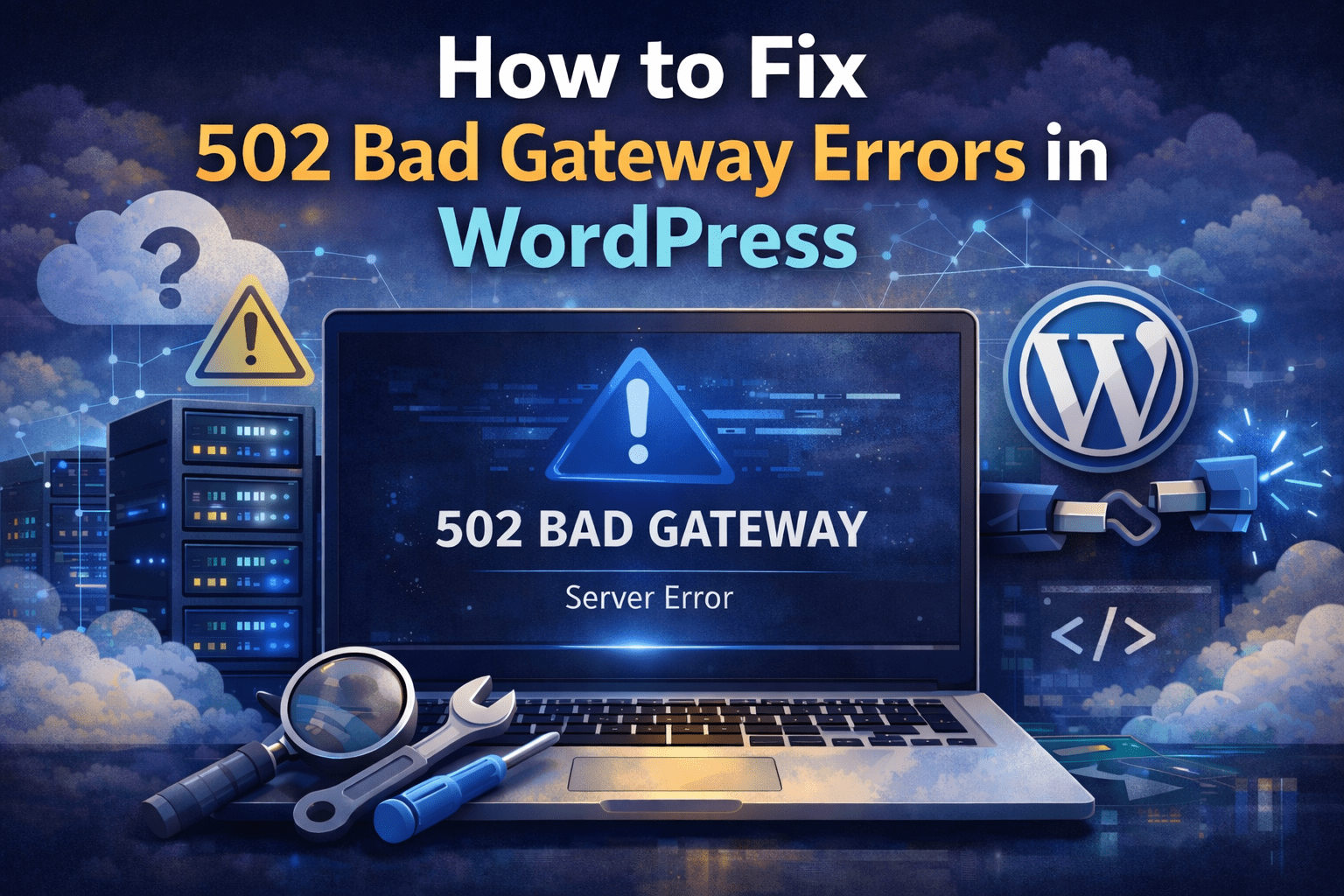
If you run a WordPress website, encountering a 502 Bad Gateway error can be both alarming and disruptive. This error typically appears when a server acting as a gateway or proxy receives an invalid response from an upstream server. In plain terms, something went wrong in the communication between servers, leaving visitors staring at an error instead of your content.
While this technical message might seem intimidating, most 502 errors are actually fixable with a little troubleshooting. In this guide, we’ll walk through practical solutions to resolve this issue — helping you restore your site’s functionality quickly and with confidence.
Understanding What a 502 Bad Gateway Error Is
A 502 Bad Gateway Error is an HTTP status code. It means that one server on the internet received an invalid response from another server it was trying to communicate with. This often stems from issues such as:
- Server timeout or overload
- Problematic plugins or themes
- CDN or firewall conflict
- DNS or network problems
The effect is the same no matter how the error is displayed — your WordPress site fails to load for visitors.
Step-by-Step: How to Fix a 502 Bad Gateway Error in WordPress
You can troubleshoot a 502 error whether you’re a site owner or a developer. Here’s how:
1. Refresh the Browser and Clear Cache
Start simple. Sometimes a web server hiccup or a cached corrupted page causes the error. Try:
- Hard refreshing the page (e.g., Ctrl + F5)
- Clearing your browser cache
- Trying a different browser or device
If this works, your site experienced a temporary glitch — no deep fixes needed.
2. Check Server Status with Your Hosting Provider
A common reason for a 502 error is server overload or maintenance. Your hosting environment might be struggling due to high traffic or misconfiguration.
If your website is hosted with a WordPress-focused hosting service, contact your host or check the server status dashboard. Issues on the hosting side often get resolved quickly once identified.
3. Disable Plugins to Isolate the Problem
WordPress plugins are powerful — but when one malfunctions, it can disrupt server communication and trigger a 502 error.
To test this:
- Access your WordPress site via FTP or your hosting file manager.
- Navigate to /wp-content/plugins/.
- Rename your plugins folder to something like plugins-old.
If the site loads after this, a plugin is the culprit. Rename your folder back and reactivate plugins one by one until you identify the problematic plugin.
4. Temporarily Switch to a Default Theme
If plugins aren’t the issue, your theme might be. WordPress themes can sometimes conflict with core files, triggering errors.
To check this, switch to a default WordPress theme (like Twenty Twenty-Four). If the site loads, your current theme is the issue and needs debugging or updating.
5. Increase PHP Memory and Timeout Limits
Complex pages, heavy plugins, or insufficient server memory can lead to timeout issues — and subsequently a 502 error.
You can increase memory limits by editing the wp-config.php file:
define('WP_MEMORY_LIMIT', '256M');
define('WP_MAX_MEMORY_LIMIT', '256M');
If you’re on shared hosting, you might need your host’s help to increase execution time limits.
6. Check CDN and Firewall Settings
If your site uses a CDN like Cloudflare or a firewall service, misconfigured settings or blocked requests can interfere with how your server responds.
Try:
- Temporarily pausing the CDN
- Clearing its cache
- Reviewing firewall logs
If the issue disappears, adjust the CDN/firewall configuration accordingly.
7. Wait or Reset DNS If You Recently Changed Hosting
Recent DNS changes — such as moving to a new host or updating nameservers — can take time to propagate globally. If your DNS is still updating, a 502 error can occur.
While waiting for propagation (up to 24-48 hours), verify that your DNS records are correct in your domain registrar dashboard.
8. Enable WordPress Debug Mode
Sometimes the problem isn’t visible from the outside. To dig deeper, enable WordPress debug mode:
define('WP_DEBUG', true);
define('WP_DEBUG_LOG', true);
define('WP_DEBUG_DISPLAY', false);
This generates a debug log you can review to identify the exact source of the issue.
Preventing Future 502 Errors
Fixing the immediate problem is one thing — preventing it is another. Here’s how you can reduce future risks:
- Keep WordPress core, themes, and plugins updated
- Use reliable hosting optimized for WordPress
- Monitor plugin performance and compatibility
- Limit unnecessary plugins
- Use a managed CDN with proper configuration
For example, regular website maintenance and hosting packages provided by Auxilium Technology – Website Maintenance & Hosting Services help ensure your WordPress site stays healthy, secure, and less prone to errors over time.
Why Professional Support Matters
If you’ve tried these steps and the error persists, or if troubleshooting feels too technical, it may be time to seek professional help. A trusted web expert can identify underlying issues quickly and implement lasting solutions.
This is where partnering with a seasoned website development company in Maryland becomes invaluable. Professionals can not only resolve errors like 502 Bad Gateway but also optimize your site for performance, security, and long-term growth.
Conclusion: Choose Experts Who Understand WordPress Inside Out
A 502 Bad Gateway error in WordPress can be frustrating, but with a structured troubleshooting approach, most issues can be resolved efficiently. Whether it’s clearing cache, disabling faulty plugins, fine-tuning server settings, or reviewing CDN configurations, each step plays a crucial role in restoring your website’s performance and user experience.
That said, preventing recurring errors and keeping your WordPress site optimized requires technical expertise and ongoing maintenance. This is where Auxilium Technology makes a difference. As a trusted website development company in Maryland, Auxilium Technology specializes in WordPress development, performance optimization, and proactive site maintenance to ensure your website remains secure, stable, and fast.
By partnering with Auxilium Technology, you gain a reliable team dedicated to transforming WordPress challenges into long-term digital success—so your website continues to support your business growth without interruption.